


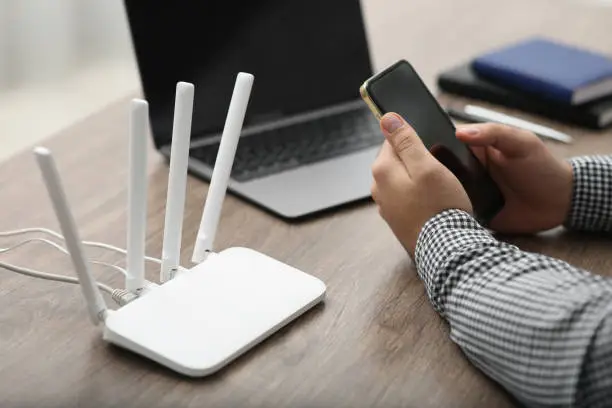
Connecting your phone to a WiFi router lets you access the internet seamlessly, stream videos, browse social media, and use apps without relying on mobile data. Once your router is set up and broadcasting a signal, linking your Android or iPhone is quick and easy, ensuring stable and fast internet access.
Understanding How WiFi Works
A WiFi router sends a wireless signal from your internet connection, allowing devices like phones, laptops, and smart TVs to connect without cables. To connect your phone, you’ll need the WiFi network name (SSID) and password, usually found on the router’s label or provided by your internet service provider.
Before connecting, ensure your router is powered on and properly linked to your modem or fiber box. Indicator lights should show that the router is active and transmitting a signal.
Connecting an Android Phone
Follow these steps to link your Android device:
-
Open Settings
Go to your phone’s Settings and tap Network & Internet or Connections, depending on your model. -
Select WiFi
Turn on WiFi if it’s off. Your phone will scan for nearby networks. -
Choose Your Network
Tap your router’s network name (SSID) from the list. -
Enter the Password
Type the WiFi password exactly as provided, including uppercase and lowercase letters. -
Connect and Verify
A WiFi icon will appear at the top of your screen. If it says “Connected, no internet,” restart your router or check your internet service.
Connecting an iPhone
iPhone users can follow these simple steps:
-
Go to Settings
Open the Settings app and tap Wi-Fi. -
Turn on WiFi
Switch it on if it’s off. Your iPhone will scan for available networks. -
Select the Network
Tap your router’s SSID from the list. -
Enter the Password
Type the WiFi password and tap Join. A checkmark will appear next to the network name. -
Confirm Connection
The WiFi icon will appear at the top right, indicating a successful connection.
Troubleshooting Connection Issues
If your phone doesn’t connect:
-
Restart both your phone and router.
-
Forget the network on your phone and reconnect with the password.
-
Move closer to the router to improve signal strength.
-
Check your router settings to ensure WiFi is enabled.
-
Reset the router using the small reset button for about ten seconds.
-
If using a dual-band router (2.4GHz and 5GHz), try both networks to see which works best.
Using a Router Management App
Many modern routers have companion apps from brands like TP-Link, Huawei, or D-Link. These apps let you monitor your network, manage connected devices, and change passwords directly from your phone. Download the app linked to your router and log in with the details on your device.
Securing Your WiFi
Protect your connection by changing the default password to a strong one with letters, numbers, and symbols. Avoid sharing your password with strangers, and enable WPA2 or WPA3 encryption in your router settings for added security.
Connecting your phone to WiFi is simple, but following these steps ensures fast, stable, and secure internet access for all your online activities.