


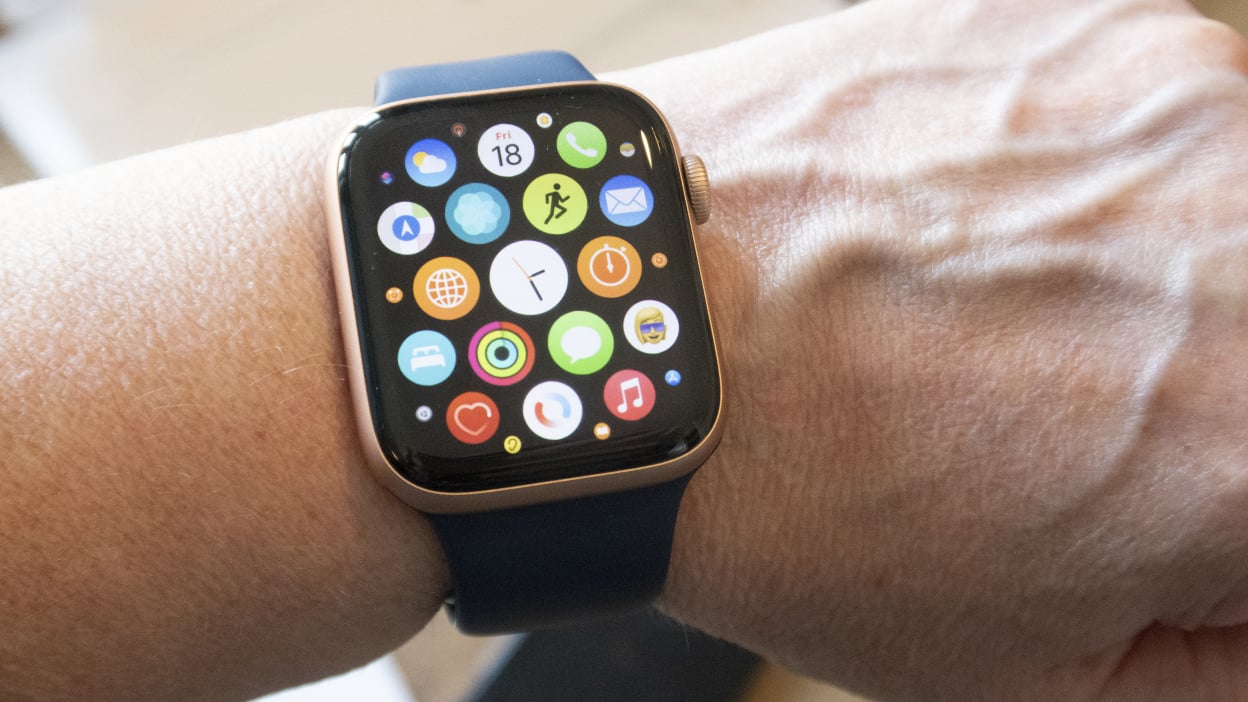
If you’re running out of room on your Apple Watch, get rid of apps and content you no longer need.
Unlike your iPhone or iPad(Opens in a new tab), your Apple Watch doesn’t have a lot of storage space for apps, music, podcasts, and other content. The amount of storage available varies depending on the watch model (Opens in a new tab). The Apple Watch Ultra, Series 8, 7, 6, 5, and SE all have 32GB of storage, but the Series 4 and Series 3 GPS + Cellular models only have 16GB, and the Series 3 GPS model only has 8 GB.
Depending on your watch and how much content you download or sync, you could quickly run out of space. However, your watch can tell you how much space you have available.
It can also show you how much space is taken up by specific apps and content, so you know what to delete when your storage space is running low.
Check Storage Space


Check the available storage space on your watch using your phone’s Watch app. In the app, navigate to My Watch > General > About. After a few seconds, the app will show the total number of songs, photos, and external apps on the device. It also displays the total capacity and available space.
Go to Settings > General > Storage on your Apple Watch to check the capacity. The Storage section shows the amount of available and used storage space. Swipe down the screen to see how much space each app and type of content, such as Music, Podcasts, and Photos, takes up.
Remove Apps

You can remove items you no longer want now that you know which content is taking up the most space. First, let’s look at deleting apps from your phone’s Watch app. Open the app and scroll down to the Installed on Apple Watch section on the My Watch screen.
Tap the name of an app you want to remove, then toggle the Show App on the Apple Watch switch to the off position, and the app will be removed from the watch. Return to the previous screen, and the app will now appear in the Available Apps section, where you can always reinstall it by tapping the Install button.

You can remove items you no longer want now that you know which content is taking up the most space. First, let’s look at deleting apps from your phone’s Watch app. Open the app and scroll down to the Installed on Apple Watch section on the My Watch screen.
Tap the name of an app you want to remove, then toggle the Show App on the Apple Watch switch to the off position, and the app will be removed from the watch. Return to the previous screen, and the app will now appear in the Available Apps section, where you can always reinstall it by tapping the Install button.
Remove Music

You should also delete any saved music from your Apple Watch (Opens in a new tab). Open the Watch app on your iPhone to begin. Swipe down to the My Watch section and select Music.
The Recent Music option adds songs that you have recently played. Turn this switch off to remove recent albums if this option is enabled and you want to see how much space can be freed up. Then, in the upper right, tap the Edit button. Tap the Delete button next to any playlist or album you want to delete.

To delete albums directly from your Apple Watch, launch the Music app. Swipe down on each album thumbnail until you see On iPhone and Library entries. Tap Library, then Albums, and then swipe down the screen until you see an album you want to delete.
Swipe to the left on the album name, then tap the ellipsis and select the Remove button. The app prompts you to choose whether to delete the album from your library or remove this download from your watch. Tap Remove Download to remove the album from your watch.
Change Photo Sync Settings

You can also modify the settings for photos synced from your phone to your watch. Open the Watch app on your iPhone, then scroll down to the My Watch section and tap the Photos entry. You can change the album that gets synced and control the number of photos synced to your watch whether the option is set to Mirror my iPhone or Custom.
Tap Sync Album and select a different album, perhaps one with fewer photos. Select Photos Limit to reduce the number of synced photos to as few as 25. The synced photos will then be updated on your watch.
Remove Audiobooks

If you have audiobooks(Opens in a new tab) on your watch, you can remove them from the Watch app on your iPhone. Tap Audiobooks in the My Watch section. You have a couple of options here.
If the Reading Now and Want to Read switches are enabled, your watch is automatically downloading audiobooks to fill space. Turn off those options to halt the sync and free up space on your device. Examine the list of synced audiobooks to see if there are any that you no longer require on your watch. Swipe to the left and select the Delete option.
Remove Podcasts

If you enjoy podcasts(Opens in a new tab), you can listen to them(Opens in a new tab) on your Apple Watch, but if you have them stored on the device, you can delete them via the Watch app. On the My Watch screen, tap the Podcasts entry. There are two options for automatically downloading episodes, but if you’re short on space, you can take control of them.
The Up Next option downloads one to ten episodes from your podcasts, whereas Saved adds one to ten saved episodes. Tap each of those items to lower the number or turn it off completely. Following that, you can select a specific podcast and either reduce the number of episodes saved automatically or remove the show entirely.
Unpair Apple Watch

If you’ve gone through all of these steps and still don’t have enough space, you could try unpairing and repairing your watch. Tap the All Watches link at the top of the Watch app to do this. Unpair your Apple Watch by tapping the Info icon on your watch.
Allow the unpairing to complete before bringing your iPhone close to your Apple Watch. Wait for the pairing screen to appear, then tap Continue and repeat the pairing process.