


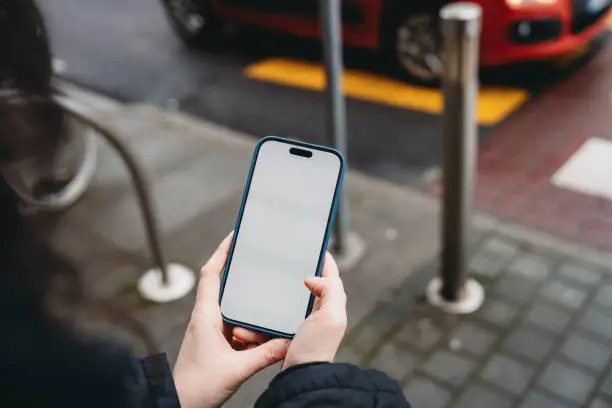
Blurring the background in photos is one of the easiest ways to make your subject pop. It adds depth, draws attention to the focus of the shot, and gives your pictures that clean, professional look. With an iPhone, you don’t need fancy equipment—Apple has built in several tools that let you create the effect instantly. Whether you’re snapping portraits, selfies, or even product shots, knowing how to blur the background can elevate your photography in seconds.
1. Use Portrait Mode
Most iPhones from the 7 Plus onward include Portrait Mode. Open the Camera app, swipe to Portrait, and position your subject a few feet away. Once you see “Natural Light” or “Depth Effect” on the screen, tap the shutter. The phone automatically sharpens your subject while softly blurring everything behind them.
2. Adjust the Blur After Shooting
Already took the shot? No problem. Open the photo in your Photos app, tap Edit, then select the little f-stop (f) icon. Dragging the slider toward a lower number (like f/2.0) makes the background creamier, while higher numbers bring more of it back into focus. It’s like having a mini DSLR control panel in your pocket.
3. Blur Regular Photos
Didn’t use Portrait Mode? You can still fake it. In Photos, use the editing tools or filters to soften the background a little. For more precision, apps like Snapseed, AfterFocus, or Focos let you highlight your subject and blur everything else. With a few taps, you can turn a standard shot into something eye-catching.
4. Get Creative with the Focos App
Focos takes background blur to the next level. It not only mimics DSLR depth but also lets you shift focus points after the photo is taken. You can fine-tune the intensity, experiment with bokeh styles, and even apply artistic blur effects for a polished, professional finish.
5. Blur Backgrounds in Videos
If you have an iPhone 13 or newer, Cinematic Mode is your best friend. Switch to Cinematic in the Camera app, hit record, and the phone will track your subject while gently softening the background—just like Portrait Mode for video. Even better, you can tweak the focus later in the Photos app.
6. Use Editing Apps for Older iPhones
No Cinematic Mode? Don’t worry. Editing apps like CapCut, InShot, or VN Editor let you manually blur video backgrounds. They’re especially handy for social media clips, tutorials, or vlogs where you want the focus firmly on you.
7. Don’t Forget Lighting and Framing
Blur works best when the basics are right. Keep your subject well-lit and separate from the background, and avoid cluttered settings. This makes the blur effect feel more natural and helps your photos look crisp and intentional.
